
23 Nov 2026
How to Allow App Installs from Unverified Developers on Android (2027 Guide)
By Riazhatvi · Updated 23 Nov 2026
How to Allow App Installs from Unverified Developers on Android (2027 Guide)
Google's stricter security rules for 2027 require you to manually enable sideloading. Follow this step-by-step guide to safely install apps from unverified developers while navigating the 24-hour delay.
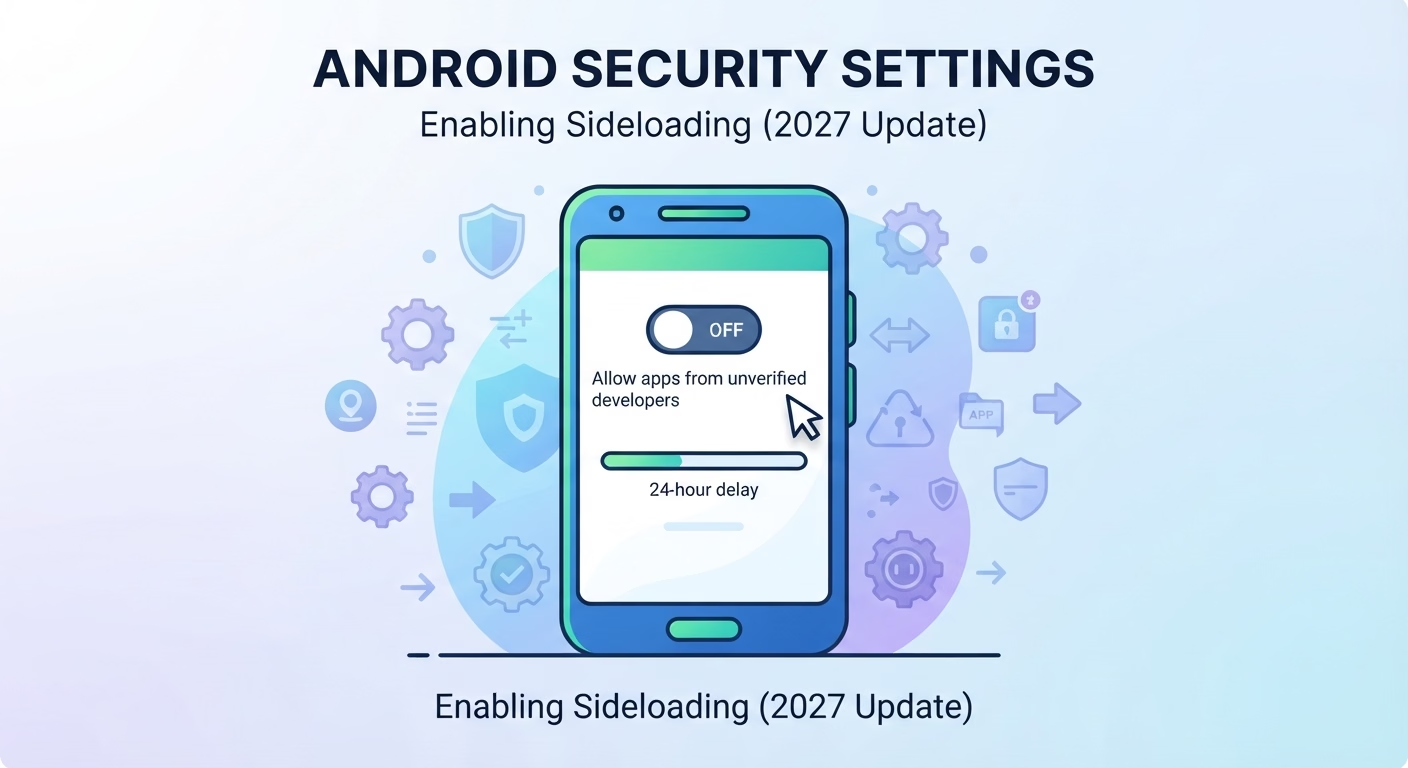
Starting with the global rollout in January 2027, Google has fundamentally changed how Android devices handle sideloading (installing applications outside the Google Play Store). Under these updated rules, attempting to install an APK from a developer who has not verified their identity with Google triggers an automatic block.
To bypass this, you must interact with Android's system-level developer options to unlock "unverified developer" access. This guide walk you through the entire "Advanced Flow" process, helping you successfully run the settings, navigate the required 24-hour security delay, and use optional overrides like ADB commands.
Why Android 2027 Sideloading Is Different
In past Android versions, enabling installation from "Unknown Sources" was a simple 5-second toggle in your web browser or file manager settings. For security reasons, Android 8 and later, running under the 2027 worldwide update, redirects unverified files through a more rigorous screening process.
If Google does not recognize the package signature or the developer, you cannot instantly run it. Instead, you must allow "unverified developer" access inside Developer Options, reboot your device, and allow a 24-hour security cooling-off delay to finalize the authorization. Here is how to complete this sequence step-by-step.
Step-by-Step: Enabling Sideloading Access
Step 1: Unlock Your Developer Options Menu
Because these permissions access sensitive parts of your Android environment, Google hides them inside a developer screen by default:
- Open your device Settings.
- Scroll to the bottom and select About Phone (or System > About Phone depending on your device manufacturer like Samsung, Google, or Xiaomi).
- Locate the Build Number. (On some devices, this might be under Software Information).
- Tap Build Number exactly 7 times. You will see a countdown, followed by a message confirming "You are now a developer!". Enter your lock screen PIN or password if prompted.
Step 2: Access the Developer Options and Find the Toggle
- Go back to your main Settings menu, select System, and look for Developer Options (on some phones, this appears at the very bottom of the primary settings screen).
- Open Developer Options and scroll down to the app management or debugging section.
- Find the setting labeled Allow apps from unverified developers.
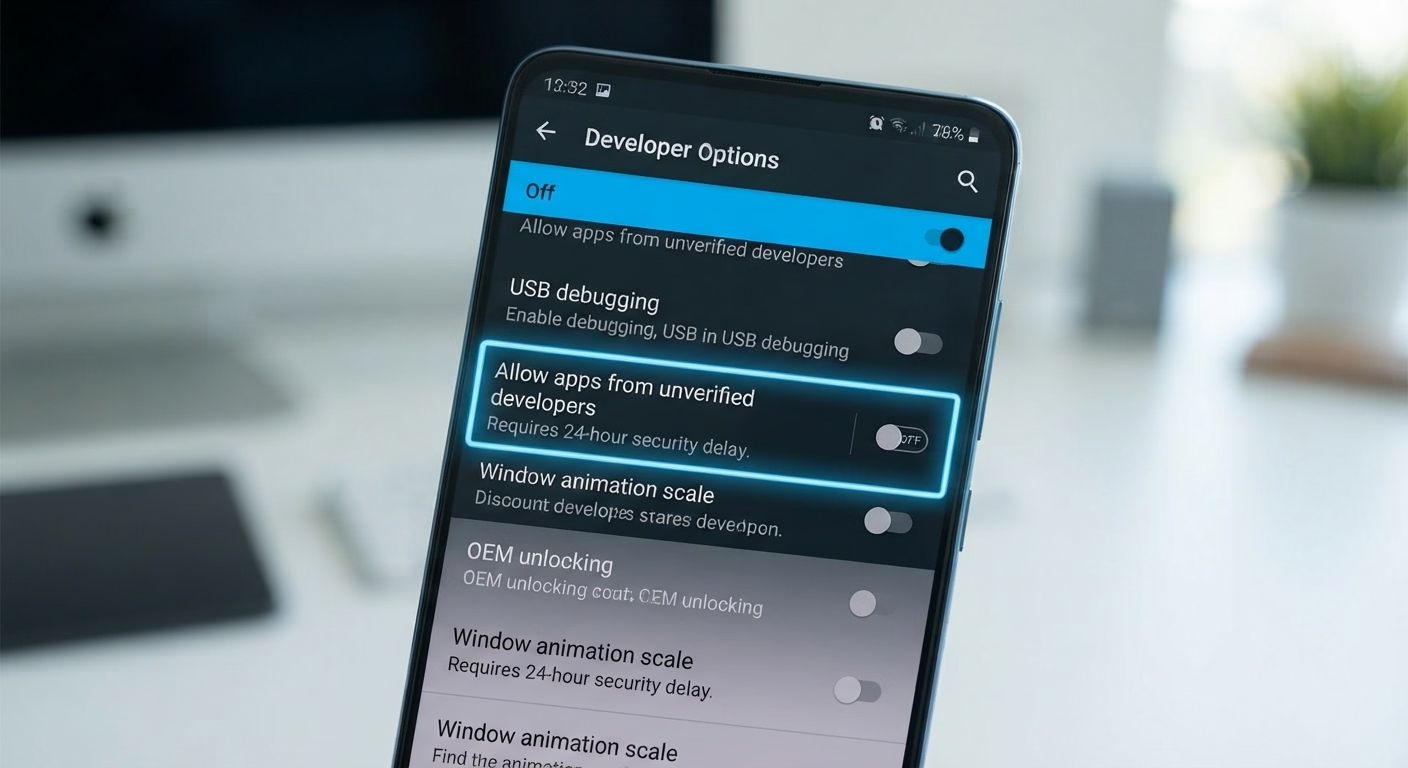
Step 3: Enable the Toggle and Restart Your Phone
- Tap the toggle for Allow apps from unverified developers to switch it ON.
- A warning message will appear, advising you of potential security, malware, or privacy risks. Tap Acknowledge/Confirm.
- CRITICAL: Immediately Restart/Reboot your device. Restarting begins Google's 24-hour countdown timer. Failure to restart may prevent the timer from running or reset your configuration.
Step 4: The Mandatory 24-Hour Wait and Authorization
After your phone restarts, a security-mandated waiting period is active:
- Leave the setting alone and **wait 24 hours**. Trying to force-install the unpermitted APK while this timer is active may trigger a "Blocked" event, requiring you to toggle the switch off and on again.
- Once 24 hours have passed, return to Settings > System > Developer Options.
- Go to Allow apps from unverified developers. You should now be able to tap the setting and authorize it with your screen pattern, PIN, or biometric security.
- Choose your preference: you can opt to enable these installs temporarily (which resets in 7 days) or toggle "Indefinitely" to avoid doing this wait period again on this specific device.
Avoid Delay Using ADB (For Developers & Power Users)
If you need to install an APK file immediately and do not want to go through the 24-hour wait, you can bypass this security flow using Android Debug Bridge (ADB) from a computer. Installations pushed using adb install [app_name].apk on a device with USB Debugging enabled are not subject to the new unverified developer delay.
Troubleshooting Sideloading on Custom Skins
While standard Android handles Developer Options uniformly, specific manufacturers (like Samsung, Xiaomi, and OnePlus) organize menu locations slightly differently:
| Brand | Unlock Process | Common Path to Developer Options |
|---|---|---|
| Samsung | Tap Build Number 7x under Software Information | Main settings page > "Developer options" (Bottom) |
| Xiaomi / Redmi | Tap OS Version (HyperOS/MIUI) 7x under About | Settings > Additional Settings > Developer Options |
| Google Pixel | Tap Build Number 7x under About Phone | Settings > System > Developer Options |
Frequently Asked Questions
What is sideloading on Android?
Sideloading refers to manual downloading and installing application files (usually .APK format) from external sources, browsers, or other app platforms outside the Google Play Store.
Will I have to wait 24 hours for every unverified app install?
No. This delay is a one-time setup step for enabling Developer Option-level privileges. Once unlocked, you can set sideloading access to remain on "Indefinitely" on that device.
Why does the 24-hour wait keep resetting?
This happens if you turn off the "Allow apps from unverified developers" toggle, fail to restart your device immediately, or use third-party cleanup utility apps that delete temporary security scripts or app installation timers.
Can I go back to default settings?
Yes, any user can disable unverified software installs at any point. Go back into Developer Options, toggle the "Allow apps from unverified developers" option to OFF, and restart your system to re-engage standard protections.