
23 Nov 2026
How to Install APK Files Using ADB Without the 24-Hour Android Delay URL Slug: install-apk-using-adb-bypass-delay
By Riazhatvi · Updated 23 Nov 2026
Android Developer & Power-User Guide • Updated for 2027 Rollout
How to Install APK Files Using ADB Without the 24-Hour Android Delay
Direct Answer: To install an APK without waiting 24 hours, enable USB Debugging in Android Developer Options, download SDK Platform-Tools on your Windows PC or Mac, connect your phone via USB, and run adb install app.apk (or ./adb install app.apk on macOS). ADB installations are officially exempt from Google’s 24-hour developer verification delay.
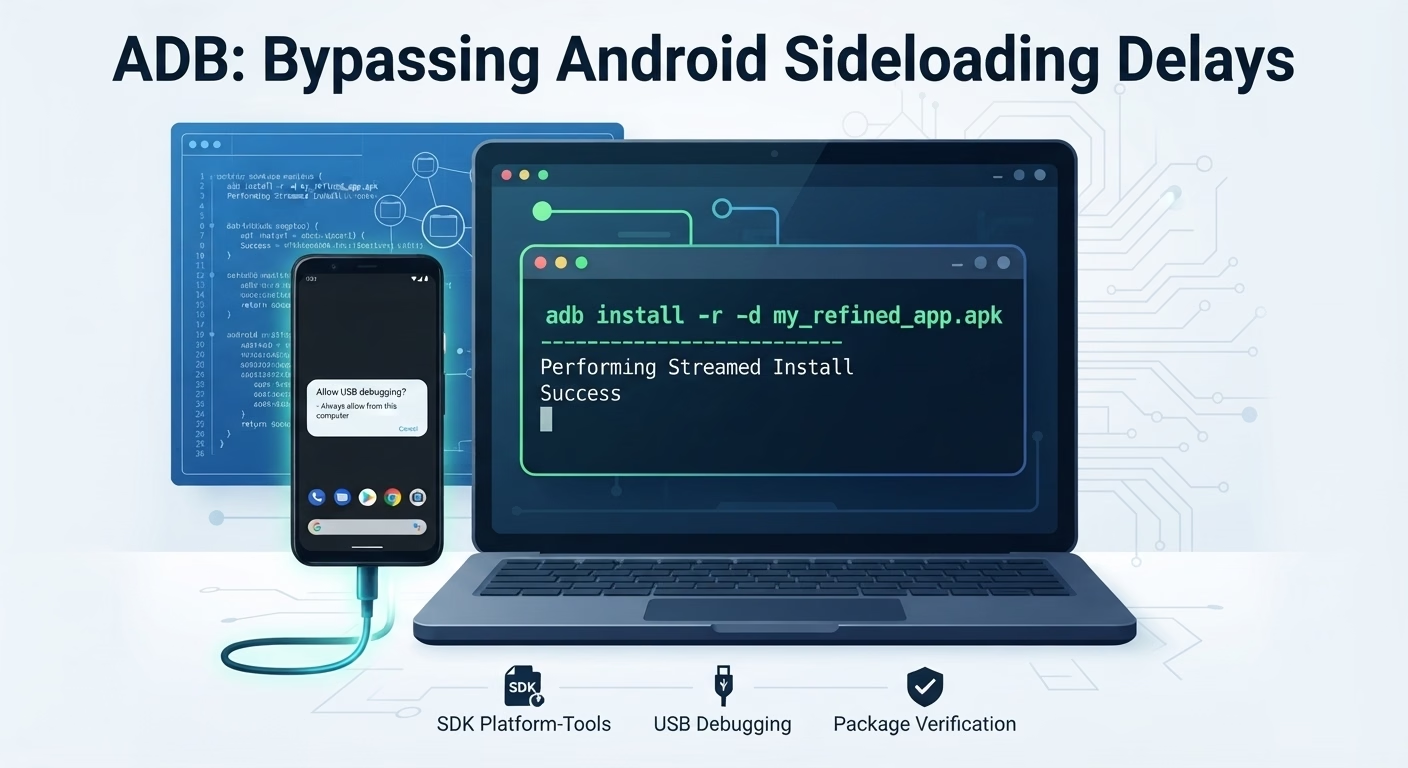
Why ADB Bypasses Google’s 24-Hour Sideloading Delay
Under Google’s new 2027 Android app installation rules, certified Android devices (Android 7 and newer) verify developer identities before allowing standard on-device APK installs. When an APK comes from an unregistered developer, Android blocks the package installer unless you complete the on-device Advanced Flow—which enforces a 24-hour cooling-off period.
However, Google explicitly carved out an exemption for Android Debug Bridge (ADB). Because ADB requires physical USB access (or local wireless pairing) plus explicit RSA key authorization on an unlocked phone, Android treats ADB pushes as deliberate developer actions rather than social-engineering attacks.
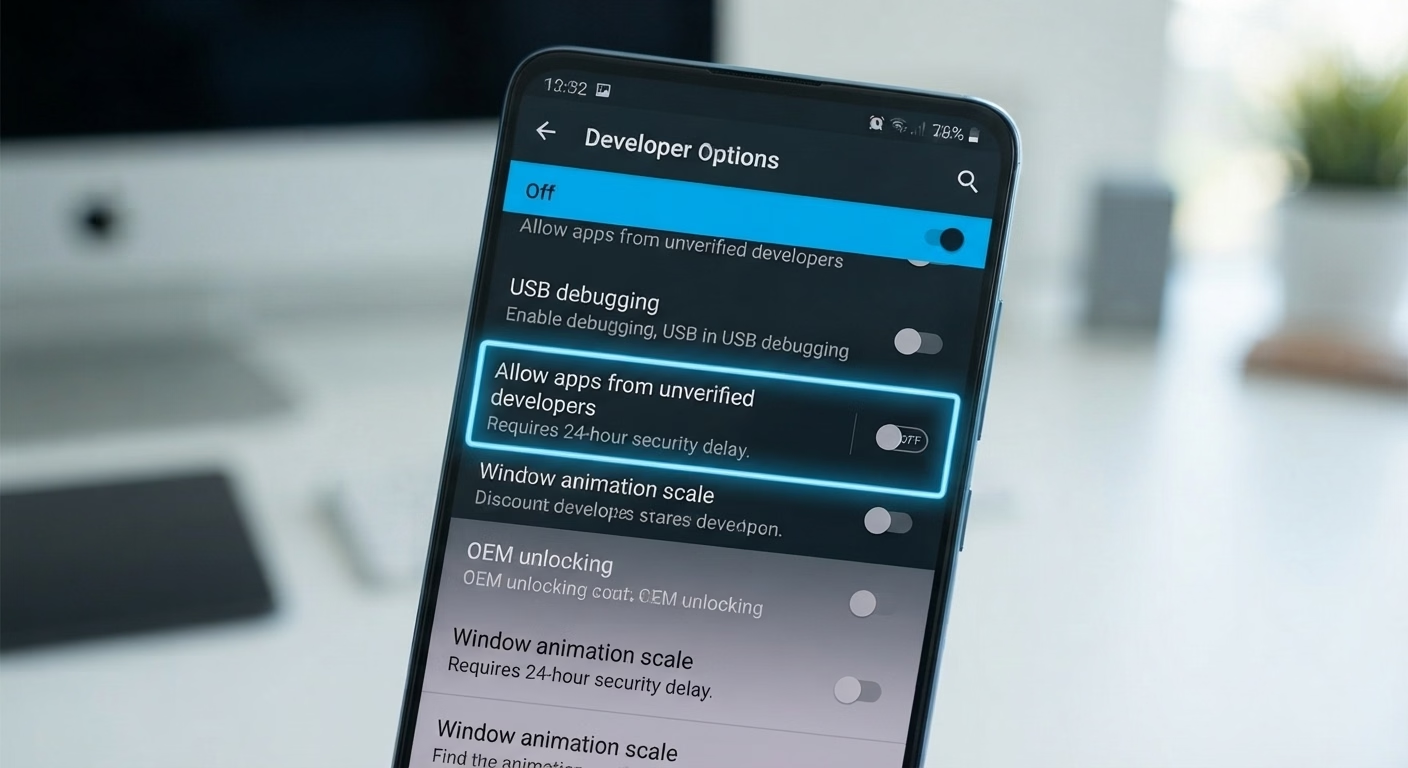
Note on Permanent On-Device Access: Installing via ADB bypasses the 24-hour timer for each app you push from your PC, without changing your phone's browser install rules. If you want permanent on-device sideloading without needing a computer later, follow our 24-Hour Advanced Flow Setup Guide.
Step 1: Enable USB Debugging on Your Android Phone
Before your computer can communicate with your Android device over ADB, you must enable USB Debugging inside Developer Options:
- Open Settings on your Android phone and tap About Phone (or System > About Phone).
- Scroll to Build Number (on Samsung Galaxy, tap Software Information > Build Number; on Xiaomi, tap OS Version) and tap it 7 times until you see "You are now a developer!"
- Return to Settings > System > Developer Options.
- Scroll down to the Debugging section, toggle USB Debugging to ON, and tap OK.
Step 2: Install Android SDK Platform-Tools (Windows & Mac)
You do not need the full Android Studio software package. Google distributes ADB inside a lightweight 15 MB standalone ZIP archive:
- Download the official SDK Platform-Tools for Windows or macOS directly from developer.android.com/tools/releases/platform-tools.
- Extract the ZIP file to a short folder path—such as
C:\platform-toolson Windows orDesktop/platform-toolson Mac. - Move or copy your downloaded
app.apkfile directly inside that extractedplatform-toolsfolder so you don't have to type full directory paths.
Step 3: Connect Your Phone & Verify ADB Connection
- Plug your Android device into your PC or Mac using a data-capable USB cable.
- Unlock your phone screen. When the "Allow USB debugging?" prompt appears, check "Always allow from this computer" and tap Allow.
- Open a command window inside the
platform-toolsfolder:- Windows: Click the File Explorer address bar inside
platform-tools, typecmd, and press Enter. - Mac: Right-click the
platform-toolsfolder in Finder and choose New Terminal at Folder.
- Windows: Click the File Explorer address bar inside
- Test the connection by running:
# Windows (Command Prompt)
adb devices

# Mac / Linux (Terminal)
./adb devices
Expected Output: Your phone's serial ID followed by the status device (for example, R58N123ABC device).
Step 4: Run Exact Windows & Mac ADB Install Commands
Once your phone is recognized, run the install command for your operating system (replace app.apk with your actual APK filename):
# Windows (Command Prompt)
adb install app.apk

# Mac / Linux (Terminal)
./adb install app.apk
Expected Output: Terminal displays Performing Streamed Install followed by Success. Your app is installed immediately with zero waiting delay.
Advanced ADB Flags (Updates, Split APKs & Downgrades)
| Scenario | Windows Command | Mac Command |
|---|---|---|
| Update existing app (preserve data) | adb install -r app.apk | ./adb install -r app.apk |
| Install Split APKs (.apks / multiple packages) | adb install-multiple base.apk config.apk | ./adb install-multiple base.apk config.apk |
| Downgrade to older app version | adb install -r -d app.apk | ./adb install -r -d app.apk |
| Grant all runtime permissions on install | adb install -g app.apk | ./adb install -g app.apk |
Common ADB Errors & Quick Fixes
error: device unauthorized: Unlock your phone screen and tap Allow on the RSA key prompt. If no pop-up appears, open Developer Options > Revoke USB debugging authorizations and replug your USB cable.'adb' is not recognized as an internal or external command: Your terminal is in the wrong folder. Runcd C:\platform-toolsfirst, or type./adbin macOS Terminal and Windows PowerShell.INSTALL_FAILED_VERSION_DOWNGRADE: A newer build is already installed. Useadb install -r -d app.apkor uninstall the existing version before pushing the older APK.- APK filename contains spaces: Enclose the filename in double quotes:
adb install "my app release.apk".
Frequently Asked Questions
Does ADB still bypass Google's 24-hour verification delay in 2027?
Yes. Google's official Android developer verification documentation confirms that ADB installations remain exempt from developer identity checks and the 24-hour delay on certified devices.
Can I use ADB without a computer (Wireless ADB / Shizuku)?
Yes. On Android 11 and later, you can enable Wireless Debugging inside Developer Options and pair local tools like Shizuku or LADB directly on your phone to install APKs without a PC.
Is it safe to leave USB Debugging turned on?
For maximum security, toggle USB Debugging off in Developer Options once you finish installing your APK. Your installed app will continue working normally.